

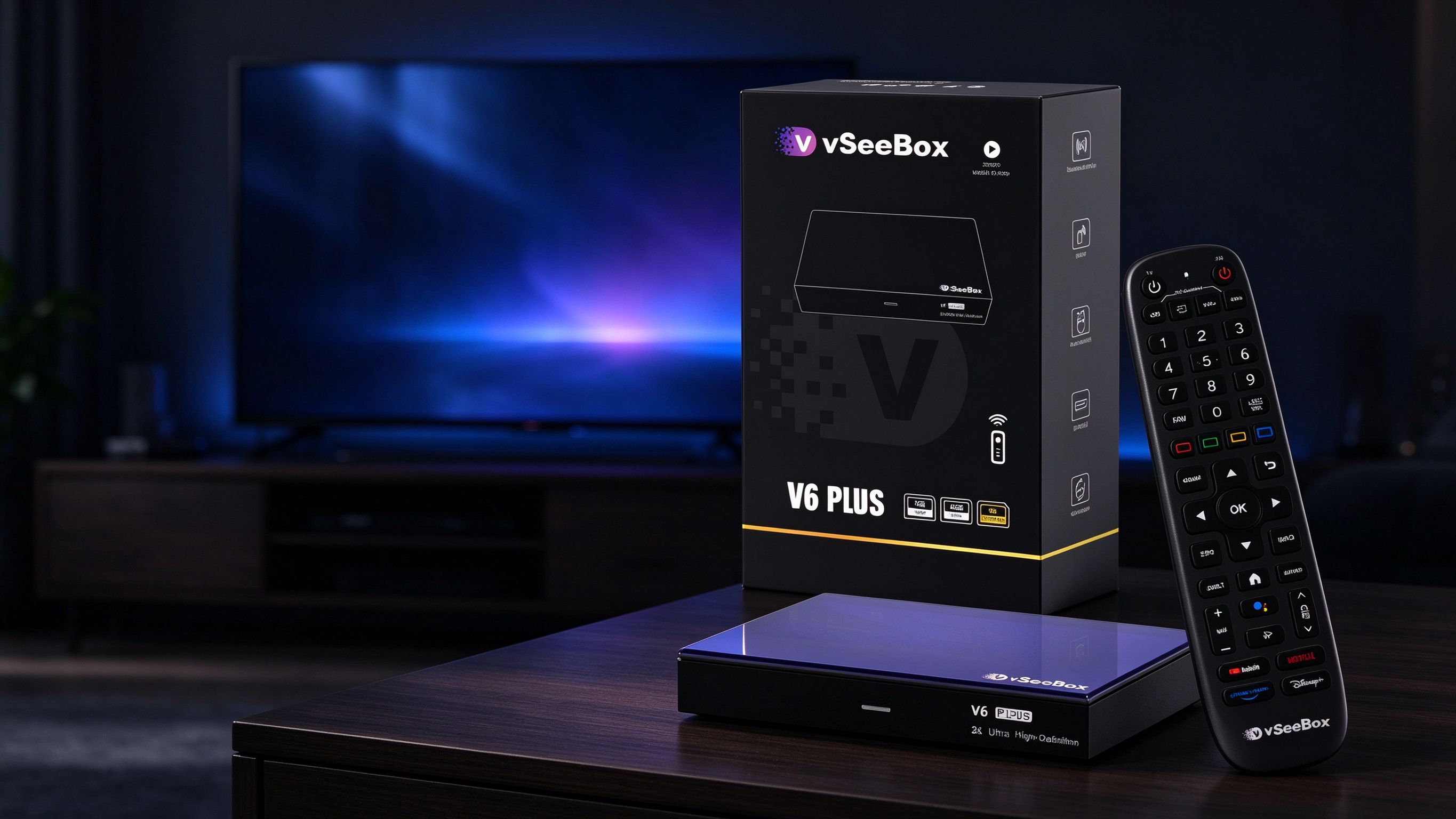
Quick Answer: Who the V6 Plus Is Best For
The VSeeBox V6 Plus is best for users who want a mid-range Android TV box with the latest software, smooth 8K playback, and the ability to run two apps side by side. It is especially worth considering if you frequently watch live sports, news, or shows where split-screen multitasking matters — for example, following one game while checking another, or keeping a recipe visible while a show plays.
It is less likely to be the right pick if you only need basic streaming and want to spend the least, or if you require niche extras such as SPDIF audio, parental controls, or 128 GB of storage.
What Is Included in the Box
Before you set anything up, confirm that your package contains the following standard items:
- VSeeBox V6 Plus device
- Bluetooth backlit voice remote control
- HDMI cable
- Power adapter
- User manual
If any of these are missing from a sealed package, contact the seller before proceeding. An incomplete box is also a warning sign if you did not order directly from an authorized VSeeBox retailer.
Key Features to Verify
Product specifications can change between production batches and listings, so treat the following as the details to cross-check against the current product page before you order.
Android Version Shown on the Current Product Page
The V6 Plus ships with Android 14.0 on the listed product pages. This is a meaningful upgrade over older Android TV boxes because it brings newer security patches, improved memory management, and a more familiar interface for anyone who has used a recent Android phone.
Because software versions can vary by seller or batch, always confirm the Android version printed on the current product page — not just on review sites or third-party listings.
Storage and Connectivity
Based on the official product listings, the V6 Plus includes:
- RAM: 4 GB
- Internal storage: 64 GB eMMC
- Processor: Amlogic S905Y5, quad-core ARM Cortex-A55
- GPU: Mali-G31 MP2
- Video decoding: Up to 8K@60 fps with 10-bit HDR, supporting AV1, VP9, H.264, and H.265
- Wireless: Dual-band Wi-Fi 6 (2.4 GHz / 5 GHz) with 2T2R MIMO
- Wired: Ethernet port (speed may vary by listing — verify on the product page)
- Bluetooth: 5.0 for headphones, speakers, gamepads, and keyboards
- HDMI output: Supports high-resolution video output (confirm HDMI version on the current product page)
For most households, 4 GB of RAM and 64 GB of storage is enough for preloaded apps, streaming services, and a modest selection of additional apps. If you plan to install many large apps or store offline media, you can expand storage via USB (up to 2 TB on supported drives).
Remote-Control Design
The V6 Plus includes a backlit Bluetooth voice remote. Two details stand out:
- Backlit buttons — the keys light up, which makes a real difference in dark living rooms or at night.
- Voice control — a microphone button works with Google Assistant for hands-free search and navigation.
Because the remote uses Bluetooth rather than infrared, you do not need to point directly at the box. You can control it from around corners or from a couch, which removes one of the most common frustrations with older TV box remotes.
Split-Screen Capability and Compatible-Use Limitations
Split-screen is the headline feature that separates the V6 Plus from the V6 Max and V6 Pro in the current lineup. It lets you view two apps or channels side by side on one TV — useful for watching two live sports feeds, following a sports ticker alongside a show, or keeping a video call open while watching content.
However, there are important limitations to understand:
- Not every app supports split-screen. The feature works with apps designed for it, including the preloaded live TV apps (such as Live Ultra+ and related VSeeBox streaming apps). It is not guaranteed to work with every third-party app you sideload.
- Both halves of the screen are smaller. Split-screen is ideal for live channels and information feeds, but it is not the best way to watch a movie or anything that benefits from a full-size picture.
- Performance expectations should stay realistic. Split-screen runs two streams at once, so a fast 5 GHz Wi-Fi or wired Ethernet connection matters more than it does for single-screen viewing.
If split-screen is the main reason you are choosing the V6 Plus, confirm with the seller exactly which apps support it before you buy.
Setup Experience
One of the strongest points of the V6 Plus is that setup is straightforward. Most users finish in 5 to 10 minutes. Here is what to expect.
HDMI and Power Connection
- Place the box near your TV, within reach of an HDMI port and a power outlet.
- Connect the included HDMI cable from the V6 Plus to an available HDMI port on your TV.
- Plug the power adapter into the box and then into a wall outlet.
- Turn on your TV and select the matching HDMI input source.
You should see the VSeeBox startup screen within a few seconds.
Network Connection
A stable internet connection is essential — this is a streaming device, and most of its value depends on it.
Wi-Fi (wireless):
- Go to Settings → Network & Internet.
- Select your Wi-Fi network.
- Enter the password and tap Connect.
For best results, use the 5 GHz band if your router supports it. Wi-Fi 6 gives you more headroom for streaming and split-screen use.
Ethernet (wired):
- Plug an Ethernet cable from your router into the V6 Plus.
- The connection is usually detected automatically.
If you plan to use split-screen or stream 8K content regularly, a wired Ethernet connection gives you the most stable experience.
Remote Pairing
- Insert AAA batteries into the remote.
- Follow the on-screen pairing prompt.
- Press and hold the designated pairing buttons on the remote until the connection succeeds.
Once paired, the remote works over Bluetooth and does not need line-of-sight.
Display and Time-Zone Settings
After connecting to the internet:
- Choose your preferred language and region.
- Set your time zone so that program guides, live TV schedules, and on-screen timestamps display correctly.
- Go to Settings → Display and select the highest resolution your TV supports. Enable HDR if your television supports it.
- (Optional) Turn on HDMI-CEC so your TV remote can power the box on and off together with the TV.
- Check Settings → System → System Update and install any available updates.
What to Check Before Buying
Current Product Specifications
Because listings can change, verify these on the product page before checkout:
- Exact Android version listed
- RAM and storage figures
- HDMI version (some pages list HDMI 2.1, others list HDMI 2.0)
- Ethernet speed rating (100 Mbps vs. Gigabit)
- Whether the backlit remote and split-screen feature are included in the current batch
Warranty and Return Terms
Authorized VSeeBox sellers typically offer:
- 1-year official warranty
- 30-day money-back guarantee
- Professional customer support
Read the return policy carefully before ordering. If a listing has no clear warranty, no support contact, or prices well below the typical \(389–\)399 range, treat it as a red flag. The market has counterfeit and unauthorized boxes, and those units usually come with no warranty and no software support.
App, Account, Subscription, and Content Permissions
The V6 Plus comes preloaded with VSeeBox streaming apps (such as Live Ultra, Heat Live, Heat VOD, Heat Ultra, and Live Ultra+). Before you buy, make sure you understand:
- Which apps are included and what content they provide access to.
- Whether any app requires a separate subscription, login, or activation.
- How content permissions and updates are handled by the seller.
- Whether third-party apps (Netflix, YouTube, Prime Video, Disney+) work on the device and whether you need to sign in separately.
If anything about content access is unclear, ask the seller directly before ordering rather than after.
V6 Plus vs V6 Max: When the Extra Features Matter
The V6 Plus and V6 Max share a lot of DNA. Both run Android 14, include 4 GB of RAM and 64 GB of storage, support 8K decoding, and come with a backlit Bluetooth voice remote. The differences are narrower than the model names suggest.
|
Feature
|
V6 Plus
|
V6 Max
|
|
Chipset
|
Amlogic S905Y5 (Cortex-A55)
|
Amlogic S905Y4 (Cortex-A53)
|
|
Split-screen
|
Yes
|
No
|
|
Remote
|
Backlit voice remote
|
Backlit voice remote
|
|
RAM / Storage
|
4 GB / 64 GB
|
4 GB / 64 GB
|
|
Wi-Fi / Bluetooth
|
Wi-Fi 6 / BT 5.0
|
Wi-Fi 6 / BT 5.0
|
|
Typical price
|
~$389
|
~$20 less
|
Choose the V6 Plus if: split-screen matters to you, you want the newer A55 processor for slightly snappier multitasking, or you plan to switch between apps frequently.
Choose the V6 Max if: you do not care about split-screen, want to save about $20, and still want an Amlogic-based box with a backlit remote.
In practice, most buyers who are on the fence end up choosing the V6 Plus because the split-screen feature and the newer chip justify the small price difference.
Pros and Limitations
Pros
- Android 14 on a TV box means newer software, better security, and a familiar interface.
- Amlogic S905Y5 chip handles 8K@60 fps, 10-bit HDR, and AV1 decoding smoothly.
- 4 GB RAM + 64 GB storage is enough for preloaded apps, streaming services, and modest expansion.
- Split-screen is genuinely useful for live sports, news, and households that want two feeds at once.
- Backlit Bluetooth voice remote improves daily use, especially in dark rooms.
- Wi-Fi 6 and Bluetooth 5.0 keep wireless connections modern.
- Simple 5–10 minute setup with guided on-screen prompts.
- 1-year warranty and 30-day return from authorized sellers.
Limitations
- Split-screen does not work with every app — only apps designed to support it.
- Ethernet speed, HDMI version, and RAM type may vary by listing — verify on the product page.
- No SPDIF audio output — if you rely on optical audio for a soundbar or receiver, check whether HDMI ARC/eARC covers your setup.
- No parental controls on the V6 Plus (those are reserved for the Elite Ultra).
- No backup failover feature found on higher-tier models.
- USB ports are USB 2.0 — external storage will not run at USB 3.0 speeds.
- Price fluctuates due to chip supply and demand; some listings show \(389, others \)399.
Frequently Asked Questions
Where Can I Buy the VSeeBox V6 Plus?
Buy the V6 Plus from an authorized VSeeBox retailer. Look for a seller that clearly displays the authorized dealer status, offers a 1-year warranty, provides a 30-day return policy, and has real customer support contact information. Avoid marketplace listings or sites with unusually low prices and no clear warranty — those often sell counterfeit or unauthorized units with no after-sales support.
How Do I Set Up the VSeeBox V6 Plus?
Setup takes about 5 to 10 minutes. Connect the box to your TV with the included HDMI cable, plug in the power adapter, pair the Bluetooth remote by holding the pairing buttons, connect to your Wi-Fi (preferably 5 GHz) or Ethernet, then follow the on-screen prompts to choose your language, time zone, and display resolution. Install any available system updates before you start streaming.
Can I Use Split-Screen With Every App?
No. Split-screen works with supported apps, including the preloaded VSeeBox live TV apps designed for the feature. It is not guaranteed to work with every third-party app you install. If split-screen is a key reason for your purchase, confirm with the seller which specific apps support it before ordering.
Next Step
Ready to see the V6 Plus in action? View the current V6 Plus product page to confirm the latest specifications, price, and availability.
Have questions before you order? Contact our support team — we are happy to help you pick the right model for your TV setup.